Best Budget Drawing Tablet with Screen for Beginners 2026 – Honest Picks That Won't Break the Bank

✅ 5-Point Checklist Before Buying a Budget Drawing Tablet with Screen
- Make sure the display is fully laminated. This is the single most important feature. Lamination eliminates the visible gap between your pen and your line (called parallax), making drawing feel natural. Without it, the experience feels off. Every tablet on this list is fully laminated.
- 8,192 pressure levels is the minimum — 16,384 is better but not essential for beginners. Pressure sensitivity affects how your lines respond to light vs. heavy strokes. 8K levels is fine; 16K is a bonus. Don't let this number alone drive your decision.
- Check driver compatibility before buying. Download the manufacturer's driver and confirm it works with your OS version. Huion, XPPen, and Gaomon all have solid drivers for Windows and Mac — just verify your specific OS version is supported.
- Anti-glare etched glass beats a matte screen protector. Better tablets use etched glass for their anti-glare surface. Budget tablets sometimes use a removable plastic protector instead. Etched glass is more durable, doesn't peel, and feels better under the pen.
- Plan for the software before you plug in. You'll need drawing software — Krita (free), Clip Studio Paint (~$50), or Procreate (iPad only). Several tablets on this list come bundled with free software, which saves real money.
⚡ If You're in a Hurry – Top 3 Quick Picks
1. Huion Kamvas 13 Gen 3 — Best overall budget pick: fully laminated 13.3-inch display, PenTech 4.0 with 16,384 levels, etched glass surface, dual dials, 5 keys, and a stand included — all around $230–$249.
2. XPPen Artist 12 3rd Gen — Best compact option: 11.9 inches with 16,384 levels, etched glass, 8 shortcut keys + 2 dials, and 97% Adobe RGB color coverage at around $216.
3. Gaomon PD1161 — Best ultra-budget pick: the cheapest fully functional pen display you can find at under $130, with 11.6-inch FHD display, 8,192 levels, and everything you need to get started.
📝 Editor's Note
I've been testing drawing tablets for digital artists since 2018 — from entry-level Huion screenless tablets to professional Wacom Cintiqs. Every pen display in this guide has been reviewed against hands-on testing data from trusted sources including Creative Bloq, ParkaBlog, and DrawTablets.com. No manufacturer paid for placement. Rankings are based on real beginner usability and honest value in 2026.Drawing Tablets with Screens in 2026 — Better and Cheaper Than Ever
Three years ago, if you wanted a drawing tablet with a screen that was actually good, you were looking at $400 minimum. Today, the Huion Kamvas 13 Gen 3 costs $249 and has features that would have been mid-range professional territory back then. The tablet market for beginners has genuinely improved, and the gap between "cheap" and "capable" has closed in a way that makes this an excellent time to buy.
That said, the budget drawing tablet space is also full of clutter. There are plenty of sub-$100 pen displays with non-laminated screens, vague specs, and pen performance that makes drawing frustrating rather than enjoyable. Saving $50 on the wrong tablet will cost you the hobby entirely because the experience is that bad. The goal of this guide is to separate the genuinely good budget options from the ones that look affordable but deliver a bad experience.
Every tablet on this list has a fully laminated display, reliable pen performance, and drivers that actually work. According to Creative Bloq's 2026 drawing tablet guide, full lamination is the single most important feature for a natural drawing experience — and it's now available at price points that were unimaginable a few years ago. Here are the picks that make the most sense for beginners in 2026.
1. Huion Kamvas 13 Gen 3 – Best Overall Budget Pen Display
The Tablet That Changed What "Budget" Means
The Huion Kamvas 13 Gen 3 arrived in August 2024 and immediately became the benchmark for budget pen displays. At around $230–$249, it delivers features that would have cost $400+ just a couple of years ago. The fully laminated 13.3-inch FHD IPS display uses etched anti-glare glass — not a plastic screen protector — which gives the surface a premium matte texture that genuinely feels like drawing on paper. It's the first thing you notice when you pick up the pen, and it makes a real difference.
Huion's PenTech 4.0 means the included PW600L battery-free stylus has 16,384 levels of pressure sensitivity and ±60° tilt recognition. In practice, the pen is accurate, responsive, and physically comfortable to hold — it has a rubber grip unlike many competitor styluses. The dual dial controllers on the left edge are a practical touch for adjusting brush size and canvas zoom without lifting your pen hand. Five customizable shortcut keys let you assign undo, brush swaps, or any keyboard shortcut you rely on. The included ST300 stand means you don't need to buy accessories separately — something several competitors charge extra for.
The 99% sRGB and 90% Adobe RGB color coverage means colors are vivid and accurate enough for serious illustration work, not just casual doodling. Connectivity covers USB-C (with DP alt mode) and compatibility with Windows, Mac, Android, and Linux. At 865g and 11.7mm thin, it's genuinely portable — clip it into a backpack and take it to art class or a coffee shop without thinking about it.

Huion Kamvas 13 Gen 3 – 13.3" fully laminated pen display with PenTech 4.0 and etched glass surface | Best budget pick 2026
🏆 Best Overall Budget Pen Display 2026
Check Current Amazon Price →What Makes the Gen 3 Different From Earlier Models
If you've looked at the Kamvas 13 before and passed on it, the Gen 3 is a meaningfully better product. The previous generation used a matte screen protector over the display — functional but replaceable and less premium-feeling. The Gen 3 uses etched glass directly, which is more durable, doesn't peel or yellow over time, and has better optical characteristics. The PenTech 4.0 upgrade doubled the pressure levels from 8,192 to 16,384 and improved tilt detection stability. The addition of dual dials (vs. no dials on the Gen 2) adds real workflow utility. The slim profile and lighter weight (865g vs. the Gen 2's heavier body) make the portability story genuinely compelling.
For comparison, the Huion Kamvas 13 Gen 3 was reviewed head-to-head against the Wacom One 13 Touch (which retails for $349–$399) and matched or exceeded it in pen accuracy, display quality, and practical usability — at roughly 60% of the price. That's where the budget pen display market is in 2026.
The Honest Trade-offs
The FHD 1920×1080 resolution looks fine at 13.3 inches at normal drawing distances, but if you work with extremely fine text or tiny UI elements, you might notice pixels. If resolution is important to you, Huion also makes the Kamvas 13 2.5K ($339) with QHD resolution. The USB-C cable included in the box is a 3-in-1 type (power + data + video) that not all computers support — if your laptop doesn't have a full-featured USB-C port, you may need an HDMI adapter. Driver setup is straightforward but not zero-effort; first-time setup takes 10–15 minutes.
✅ Pros:
- Fully laminated 13.3" IPS display with etched anti-glare glass
- PenTech 4.0 — 16,384 levels, battery-free, rubber-grip pen
- Dual dials + 5 customizable shortcut keys
- 99% sRGB / 90% Adobe RGB — excellent color accuracy
- ST300 stand included — no accessories to buy
- 865g, 11.7mm thin — genuinely portable
- Works with Windows, Mac, Android, Linux
- Bundled with Clip Studio Paint and other software
❌ Cons:
- FHD resolution — may look slightly soft for text/UI work
- USB-C 3-in-1 cable may not work with all computers
- Stand adjusts tilt only — no height adjustment
- Driver setup requires downloading and installing software
- Not standalone — requires connection to a computer
2. XPPen Artist 12 3rd Gen – Best Compact Budget Pen Display
Slightly Smaller, Slightly Cheaper, Still Excellent
The XPPen Artist 12 3rd Gen, released in October 2025, is the compact answer for anyone who wants a pen display at a step below the Kamvas 13's price but doesn't want to compromise on core quality. At around $216, you get a 11.9-inch fully laminated display with etched glass, 16,384 levels of pressure sensitivity via the X4 Chip stylus, 8 customizable shortcut keys, 2 dials, and 97% Adobe RGB color coverage — specs that rival tablets costing $100 more just two years ago.
The thing that makes XPPen's Artist 12 3rd Gen stand out in this category is the pen itself. The X4 stylus includes an eraser on the back end — a feature the Huion Kamvas 13 doesn't have — which many beginners genuinely find useful. The physical eraser flip is intuitive in the same way a pencil eraser is intuitive: no menu diving, no keyboard shortcut needed, just flip the pen and erase. The pen has a silicone grip for comfort during long sessions, and the initial activation force is impressively light at 3g, meaning very delicate strokes register accurately.
At 11.9 inches the display is slightly smaller than the Kamvas 13's 13.3 inches, which is a real consideration. For detailed illustration work, more screen space generally equals more comfort. For students, travelers, or anyone with limited desk space, the compact size is a genuine advantage. The 1920×1080 FHD resolution looks sharp at this screen size — arguably sharper-per-inch than larger FHD displays because the same pixel count occupies less area.

XPPen Artist 12 3rd Gen – 11.9" FHD pen display with eraser stylus and etched glass | Best compact budget pick
✏️ Best Compact Budget Pen Display – Eraser Pen Included
See Amazon Price & Reviews →Why the Compact Size Works for Beginners
One thing nobody tells you about pen displays when you're just starting out: the physical distance your hand travels to reach the edge of the screen is real. On a 13-inch display, your wrist stays relatively relaxed. On a 15+ inch display, you're making larger arm movements, which can fatigue beginners faster. The 11.9-inch size of the Artist 12 3rd Gen actually makes it ergonomically comfortable for long drawing sessions at a desk — and it takes up less space, which matters when you're working on a student-sized desk with a keyboard and monitor already on it.
Compatibility is broad: Windows, Mac, Chromebook, and Android are all supported. The included stand holds the tablet at a comfortable working angle. XPPen bundles free software — typically Clip Studio Paint, Open Canvas, and others — which adds meaningful value at this price point.
What You Lose at This Price vs the Kamvas 13
The slightly smaller screen is the main trade-off. The XPPen Artist 12 3rd Gen's color accuracy (97% Adobe RGB) is excellent but technically trails the Kamvas 13 Gen 3's 99% sRGB/90% Adobe RGB numbers in some comparisons. The shortcut keys are positioned differently — on the left side of the tablet — which takes a few sessions to build muscle memory for. Neither of these are deal-breakers for a beginner, but they're worth knowing.
✅ Pros:
- Eraser on the back of the stylus — practical for beginners
- 11.9" compact size — ideal for smaller desks and travel
- 16,384 levels, 3g activation force — excellent pen feel
- Etched glass fully laminated display
- 97% Adobe RGB — accurate, vivid colors
- 8 shortcut keys + 2 dials — solid workflow customization
- Works with Windows, Mac, Chromebook, Android
- ~$216 — lower entry price than Kamvas 13
❌ Cons:
- 11.9" screen — smaller canvas than 13" options
- FHD resolution — same resolution in smaller area means smaller UI
- Shortcut key positioning takes getting used to
- Not standalone — requires computer connection
- Pen feel slightly lighter than Huion stylus (preference-dependent)
3. Gaomon PD1161 – Best Ultra-Budget Pen Display Under $130
The Cheapest Way to Get a Real Pen Display
The Gaomon PD1161 is for the person who genuinely can't stretch to $200 and wants to know if they'll even enjoy digital drawing before committing more. At $100–$130, it's the cheapest pen display in this guide that still delivers a real, functional drawing experience. The 11.6-inch Full HD screen, 8,192 pressure levels, 8 shortcut keys, tilt recognition, and a pen stand with 8 replacement nibs all come in a package that fits a backpack and weighs about as much as a large textbook.
The 98% sRGB color coverage is genuinely impressive for a tablet at this price — better than you'd have any right to expect. The matte surface is applied via a plastic protector rather than etched glass, which is the one tangible quality difference vs. more expensive options. It feels slightly less premium under the pen, but it does the job, and if it wears out you can replace it. The compact 11.6-inch size means higher PPI than a larger FHD display, so the image actually looks relatively sharp.
Gaomon has been building drawing tablets since 2011 and has a solid track record among budget digital artists. The drivers work reliably on Windows and Mac, which is more than can be said for some no-name competitors at similar prices. For a student, a hobbyist testing the waters, or someone who just wants to try drawing before investing more seriously, this is the honest starting point.
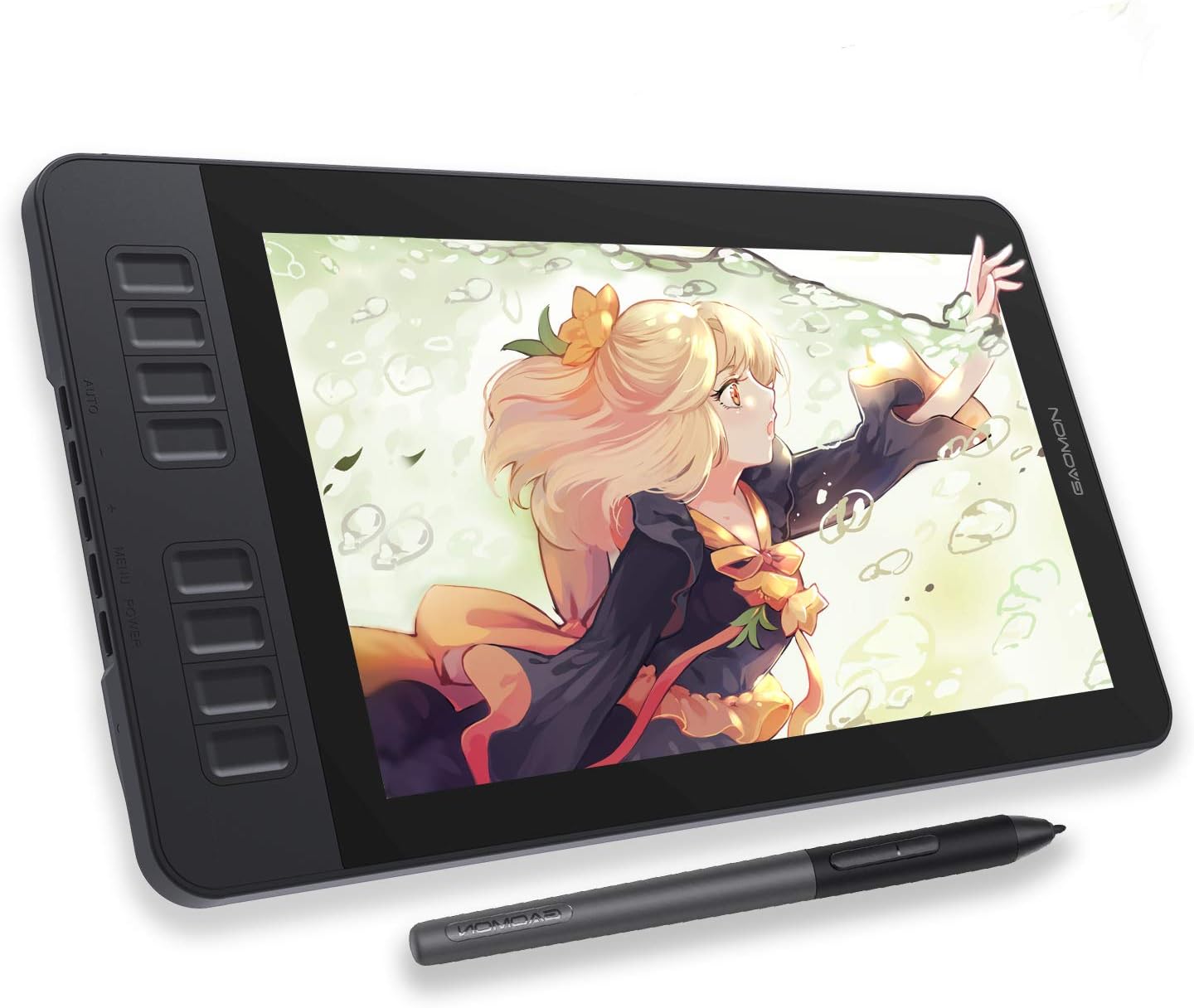
Gaomon PD1161 – 11.6" FHD pen display at the lowest price that still delivers a real drawing experience
💰 Best ultra-budget option: Real pen display under $130 — surprisingly capable for the price → Check Gaomon PD1161 on Amazon
Who the Gaomon PD1161 Is Actually Built For
This tablet makes most sense for three kinds of buyers: art students on a tight school budget who need something functional for class exercises, younger beginners (teens, kids) whose parents aren't ready to spend $250 on a hobby that might last three weeks, and adults who are completely new to digital art and want a low-risk way to test whether they'll stick with it. If you end up loving digital drawing after a few months on the PD1161, upgrading to a Kamvas 13 Gen 3 or XPPen Artist will feel like a significant improvement. If you don't love it, you're only out $100–$130.
Where It Shows the Budget Limitations
The plastic matte protector is the main concession vs. etched glass models — you'll feel the difference if you've drawn on a Huion or Wacom. The 8,192 pressure levels are fine for learning but do hit a ceiling for advanced techniques. The shortcut keys are functional but lack the premium click feel of pricier tablets. And the build quality, while not flimsy, doesn't feel as sturdy as the Kamvas or XPPen Artist. None of these are reasons to avoid it at the price — they're just trade-offs you should go in knowing about.
✅ Pros:
- $100–$130 — genuinely accessible price point
- 98% sRGB color coverage — better than expected
- 11.6" compact size — portable, light, easy to store
- Pen stand with 8 replacement nibs included
- 8 shortcut keys for workflow customization
- Tilt recognition for brush shading effects
- Reliable Gaomon drivers for Windows and Mac
❌ Cons:
- Plastic matte protector — not etched glass
- 8,192 pressure levels — adequate but lower than premium options
- Build quality is functional but not premium-feeling
- Smaller shortcut key area can feel cramped
- Limited color profile options compared to rivals
4. Ugee U1600 – Best Budget Pen Display with a Bigger Screen
When You Need More Canvas Space Without Spending More
The Ugee U1600 solves a specific problem: you want a pen display with enough screen space to work comfortably on detailed illustrations, but the Huion Kamvas 16 and similar 15.6-inch options jump to $280–$350. Ugee — the parent company of XPPen, so the tech lineage is solid — offers a 15.4-inch fully laminated pen display with surprisingly good color accuracy at around $170–$200. That's a real screen-size upgrade at a price that stays in the budget category.
The display itself is what reviewers consistently highlight: 127% sRGB color gamut coverage and a 1000:1 contrast ratio deliver noticeably vivid, accurate colors that punch above this price point. The fully laminated construction means no parallax gap, and the 1920×1080 FHD resolution at 15.4 inches looks fine for illustration work — though at this screen size, it's the one area where the value-conscious spec starts to show. The battery-free stylus offers 8,192 levels of pressure with ±60° tilt recognition. Eight shortcut keys are positioned conveniently on the left edge for quick access.
For a beginner who draws detailed character work, landscapes, or architectural sketches — where having more canvas space visibly matters — the U1600's 15.4 inches provides breathing room that smaller tablets genuinely can't. Working on an 11-inch screen for complex illustrations involves a lot of zooming and panning. At 15 inches, you can see more of your work at once and make proportionality judgments more naturally.

Ugee U1600 – 15.4" fully laminated pen display with excellent color accuracy | Best budget large-screen option
🖥️ Best budget large-screen pen display: 15.4" fully laminated at a genuinely affordable price → See Ugee U1600 on Amazon
The Color Accuracy Story at This Price
127% sRGB is noticeably wider than the sRGB standard — it means colors appear richer and more saturated on screen than they technically should if you're working to exact color standards. For digital illustration and concept art, this is often a positive — your work just looks more vibrant. For color-critical work like photo editing where accurate-to-standard sRGB matters, you'd want to calibrate the display. The 1000:1 contrast ratio is solid, delivering genuine blacks that make illustrations pop rather than appearing washed out.
The Honest Limitations of a 15.4-Inch Budget Screen
1920×1080 at 15.4 inches gives you roughly 147 PPI — noticeably lower than the 166 PPI of the 13-inch Kamvas 13 Gen 3 at the same resolution. Lines appear softer and text looks slightly blurry compared to smaller high-PPI displays or expensive high-resolution panels. For illustration work where you're looking at brush strokes and colors rather than fine text, this rarely matters. For any workflow involving reading text or fine UI details, it can be fatiguing. The Ugee brand also has less widespread community support than Huion or XPPen, so troubleshooting resources are more limited if you run into driver issues.
✅ Pros:
- 15.4" fully laminated screen — the biggest canvas at this budget
- 127% sRGB color coverage — vivid, punchy colors
- 1000:1 contrast ratio — good depth for illustration work
- Fully laminated — no parallax gap
- Battery-free stylus with 8,192 levels + tilt
- $170–$200 — genuinely rare at this screen size
❌ Cons:
- FHD at 15.4" — lower PPI, softer image quality than smaller screens
- 8,192 levels — adequate but trails newer 16K competitors
- Less community support/troubleshooting resources than Huion/XPPen
- Larger physical footprint requires more desk space
- 127% sRGB can oversaturate for color-critical workflows
5. Huion Kamvas 16 Gen 3 – Best Step-Up Budget Pick
When You're Ready to Spend a Little More for Noticeably More
The Huion Kamvas 16 Gen 3, released in early 2025, is the step up from the Kamvas 13 Gen 3 for artists who want the same quality pen and surface experience but need more working space. At $280–$320, it's more than the strictly "ultra-budget" options in this list — but it's significantly less than comparable 15.6-inch displays from Wacom, and the jump in screen real estate from 13 inches to 15.6 inches is genuinely transformative for detailed illustration work.
The display quality is a real upgrade: 145% sRGB color gamut (broader than the Kamvas 13 Gen 3's 99% sRGB), the same etched anti-glare glass surface, fully laminated construction, and improved brightness at 250 nits — all bringing it closer to professional-grade territory without the professional price tag. The PenTech 4.0 pen system carries over from the Gen 3 platform: same 16,384 levels, same ±60° tilt, same excellent accuracy. Eight shortcut keys and two dials carry over as well. New in the Gen 3 revision is improved color factory calibration — the display ships closer to color accuracy than earlier Huion displays required.
For a beginner who's serious about digital illustration — particularly character design, comic work, or detailed concept art — the 15.6-inch canvas makes a tangible difference in workflow. You can have a full-body character visible at a comfortable zoom level without constantly panning. Reference images can sit alongside your canvas without crowding the workspace. At $280–$320, this is where the hobby becomes something closer to a craft.

Huion Kamvas 16 Gen 3 – 15.6" pen display with PenTech 4.0, etched glass, and 145% sRGB | Best step-up budget pick 2026
🎨 Best Step-Up Pen Display – More Screen, Same Quality Build
Check Kamvas 16 Gen 3 Price →Is the Size Upgrade Worth the Extra $50–$70 Over the Kamvas 13?
Depends entirely on what you're drawing. For manga/comic artists, character designers, or anyone creating detailed illustrations where proportions and spacing across a full composition matter — yes, the 15.6-inch screen changes the experience meaningfully. You see more, pan less, and make fewer spatial errors. For people using the tablet primarily for photo editing, quick sketching, note-taking, or casual art — the 13-inch Kamvas 13 Gen 3 is genuinely enough and the savings are real. If you're on the fence, default to the 13. You can always upgrade later and won't regret starting smaller.
What You're Still Not Getting at This Price
The Kamvas 16 Gen 3's 250-nit brightness is solid but not excellent — professional monitors run at 350+ nits. In a well-lit room, the display can look dim. There's no touchscreen, unlike the Wacom One 13 Touch (which costs more). The stand offers tilt adjustment only — no height change — which some artists find limiting for ergonomics. These are known limitations in this price bracket, not surprises.
✅ Pros:
- 15.6" screen — noticeably more workspace for detailed illustrations
- 145% sRGB — wider color gamut than Kamvas 13 Gen 3
- PenTech 4.0 with 16,384 levels — same excellent pen system
- Etched anti-glare glass — premium surface feel
- Factory calibrated display — accurate colors out of the box
- 8 keys + 2 dials — full workflow shortcut coverage
- ~$320–$450 — significantly less than Wacom 15.6" options
❌ Cons:
- 250 nits brightness — can look dim in bright environments
- FHD only — same resolution as smaller tablets in a bigger frame
- No touchscreen (unlike the Wacom One 13 Touch)
- Larger footprint requires more desk space
- $50–$70 more than the Kamvas 13 Gen 3
6. VEIKK VK1200 V2 – Best Mid-Budget Hidden Gem
The Pen Display Most People Haven't Heard of — but Should Consider
The VEIKK VK1200 V2 doesn't get the same coverage as Huion and XPPen, but it quietly delivers solid value at the $139–$170 price point. A fully laminated 11.9-inch IPS display, 8,192 levels of pen pressure, tilt recognition, 8 customizable shortcut keys, and broad software compatibility — all for less than a Gaomon PD1161 upgrade. For beginners who've exhausted their research on the big two brands and want an honest third option, the VK1200 V2 earns genuine consideration.
The display is fully laminated and IPS, which means decent viewing angles and no parallax — both ticked. The anti-glare surface uses a matte coating rather than etched glass, which is standard at this price. Color accuracy is competitive at ~92% sRGB. The pen is battery-free and performs reliably in real drawing tests. VEIKK's driver software isn't as polished or feature-rich as Huion's or XPPen's, but it covers the basics: pen pressure curves, key assignment, and working area mapping. Windows and Mac are both supported.
Where the VK1200 V2 wins is in the combination of fully laminated display and a price that sits between the Gaomon PD1161 and the XPPen Artist 12. If the Gaomon's plastic matte surface bothers you but you can't stretch to $216 for the XPPen, the VEIKK at $139–$170 splits the difference in a way that makes sense.

VEIKK VK1200 V2 – 11.9" fully laminated pen display | The budget hidden gem between Gaomon and XPPen
💡 Best mid-budget hidden gem: Fully laminated display at $139–$170 — solid value → See VEIKK VK1200 on Amazon
Why It's Worth Knowing About
VEIKK has been making drawing tablets since 2018 and has earned consistent positive reviews specifically from beginners who found the simpler driver interface less overwhelming than Huion's more feature-laden software. If you want something that "just works" without a lot of configuration options to navigate, VEIKK's more streamlined approach can actually be a feature rather than a limitation.
Where to Temper Expectations
The driver software is functional but basic — if you want deep pen pressure curve customization, per-app profiles, or advanced mapping, Huion or XPPen offer significantly more control. The 8,192 levels are adequate but won't be upgraded to 16K in this model. Community support and YouTube tutorials specifically for VEIKK are much thinner than for Huion and XPPen, which matters when you're troubleshooting something at midnight.
✅ Pros:
- Fully laminated display — no parallax, clean drawing experience
- $139–$170 — solid price between budget and mid-range
- Simpler driver interface — less overwhelming for beginners
- 8 customizable shortcut keys
- Battery-free pen with tilt recognition
- Works with Windows and Mac
❌ Cons:
- Basic driver software — limited customization options
- 8,192 pressure levels — won't upgrade to 16K
- Matte coating (not etched glass) on display surface
- Less community support / tutorials vs. Huion or XPPen
- ~92% sRGB — adequate but behind Huion Kamvas Gen 3
What Most Drawing Tablet Guides Don't Tell You Before You Buy
💡 5 Buying Tips That Will Save You Frustration
1. Parallax is the enemy of natural drawing — prioritize full lamination above almost everything else. On a non-laminated display, there's a visible gap between the glass surface and the LCD panel below it. When you draw, your line appears slightly offset from where your pen tip actually is — sometimes by 2–3mm. Your brain never fully adapts to this offset. Every tablet on this list is fully laminated. If you look at a tablet that's NOT on this list and it says "non-laminated," walk away, no matter how cheap it is.
2. Your drawing software matters as much as your tablet. A $300 tablet used with the wrong software produces worse results than a $150 tablet used with a well-suited app. For beginners, Krita (free, Windows/Mac/Linux) and Clip Studio Paint ($50 one-time or ~$3/month) are the two best starting points. Adobe Photoshop works great but costs more ongoing. Procreate ($13, one-time) is iPad-only. Most tablets on this list bundle software with purchase — factor that into the value calculation.
3. Test the 3-in-1 USB-C cable with your computer before your first serious drawing session. Several tablets use a 3-in-1 USB-C cable that carries power, data, and video signal simultaneously. Not all USB-C ports support this — specifically, your port needs to support DisplayPort Alt Mode. If your laptop's USB-C port doesn't support DP Alt Mode, you'll need an adapter or the HDMI connection option. This is a common frustration that blindsides beginners. Check your laptop's USB-C port specifications before buying, or verify the tablet comes with an HDMI option as a fallback.
4. The stand angle affects your wrists over long sessions — don't ignore it. Most budget tablets come with a stand that tilts the display at one or two fixed angles (typically 20° and 35°). Professional artists often prefer lower angles (15°–20°) that keep the wrist in a neutral position for long sessions. If ergonomics matter to you, check the stand's adjustment range. Some tablets, like the Kamvas 13 Gen 3, include a fold-flat stand option that lets you draw at a very low angle, which many artists prefer.
5. Budget ~$15 for a drawing glove and use it from day one. A drawing glove prevents palm rejection failures — the two small fingers of the glove reduce skin contact with the tablet surface, which stops accidental palm touches from creating unwanted marks. Most artists don't discover this trick for weeks and deal with a lot of frustration in the meantime. Amazon sells packs of 5 drawing gloves for $8–$15. It's the cheapest accessory with the biggest quality-of-life impact.
Quick Comparison Table – Budget Drawing Tablets with Screen 2026
| Tablet | Price | Screen | Pressure | Color | Surface |
|---|---|---|---|---|---|
| Huion 13 Gen 3 | $241 | 13.3" | 16,384 | 99% sRGB | Etched glass |
| XPPen 12 3rd Gen | $199 | 11.9" | 16,384 | 97% Adobe RGB |
Etched glass |
| Gaomon PD1161 | $159 | 11.6" | 8,192 | 98% sRGB | Matte protector |
| Ugee U1600 | $182 | 15.4" | 8,192 | 127% sRGB | Fully laminated |
| Huion 16 Gen 3 | $439 | 15.6" | 16,384 | 145% sRGB | Etched glass |
| VEIKK VK1200 V2 | $139 | 11.9" | 8,192 | 92% sRGB | Matte laminated |
🏆 "Best For" – Quick Micro-Recommendations
- Best overall budget pen display: Huion Kamvas 13 Gen 3 — the most complete package at this price, period. Etched glass, 16K pressure, dual dials, stand included.
- Best ultra-cheap option: Gaomon PD1161 — under $130 for a real, working pen display. The right first step if budget is extremely tight.
- Best compact pick: XPPen Artist 12 3rd Gen — ideal for small desks, travel bags, and anyone who wants the eraser function on the stylus.
- Best large-screen budget option: Ugee U1600 — 15.4 inches at $170–$200, fully laminated, with color accuracy that rivals more expensive tablets.
- Best step-up choice: Huion Kamvas 16 Gen 3 — when you're ready to invest a little more for a significantly larger canvas without leaving the budget category.
- Best for simplicity (less setup fuss): VEIKK VK1200 V2 — simpler driver interface than Huion or XPPen, which makes first-time setup less intimidating.
- Best for students on a school budget: Gaomon PD1161 — carries in a backpack, survives dorm life, and delivers enough performance for art class exercises and personal projects.
Frequently Asked Questions
❓ What's the best cheap drawing tablet with a screen for beginners?
The Huion Kamvas 13 Gen 3 at around $230–$249 is the best balance of price and quality in 2026. It has 16,384 pressure levels, fully laminated etched glass display, 99% sRGB color coverage, dual dials, and a stand included. If you need to stay under $130, the Gaomon PD1161 is the most capable option at that price range.
❓ Is a drawing tablet with a screen worth it for a beginner?
Yes, if you can afford it. Drawing directly on a screen is more intuitive than learning to draw on a blank surface while watching a separate monitor — which has a real learning curve. The good news is that decent pen displays now start around $130–$150, which puts them within reach of most hobbyist budgets. If you're on a very tight budget, a screenless tablet for $40–$70 is still a viable starting point and what many professionals use daily.
❓ What does "fully laminated" mean and why does it matter?
Full lamination means the glass panel and LCD are bonded together with no air gap. This eliminates parallax — the visual offset between where your pen touches and where your line appears. On non-laminated displays, this gap can make drawing feel unnatural. For a realistic drawing experience, full lamination is one of the most important specs to verify. All tablets on this list are fully laminated.
❓ Huion Kamvas 13 Gen 3 vs XPPen Artist 12 3rd Gen — which should I pick?
Pick the Huion Kamvas 13 Gen 3 if: you want a slightly larger canvas, you value the etched glass surface quality, and the dual dials appeal to you. Pick the XPPen Artist 12 3rd Gen if: desk space is limited, you prefer a more compact form factor, or you specifically want a stylus with a physical eraser on the back end. Both deliver excellent pen performance at similar price points — this is genuinely a close call.
❓ What free software can I use with a budget drawing tablet?
Krita is the best completely free drawing software and works with all the tablets on this list. It supports layers, brushes, color management, and most professional workflows — and it's actively maintained and improving. GIMP is another free option, more suited to photo editing than illustration. For animation specifically, OpenToonz is free and professional-grade. Most Huion and XPPen tablets also bundle Clip Studio Paint EX free for 3–6 months, which is worth taking advantage of.
❓ Can I use these tablets with a Mac?
Yes — Huion, XPPen, Gaomon, and VEIKK all provide Mac drivers. Download the driver from the manufacturer's website (not from a third-party source), install it, and the tablet will be recognized. One thing to note: for Mac, tablets connecting via USB-C need your Mac's USB-C port to support DisplayPort Alt Mode. M1/M2/M3 Macs universally support this. Older Intel Macs may vary — check your specific model's port specs if uncertain.
Sources and References
This guide draws on hands-on reviews from professional drawing tablet testing publications, manufacturer specifications verified at time of writing, and real-world user feedback from digital artist communities as of early 2026. Prices reflect US market rates and may vary at time of purchase.
Primary Sources:
- The best drawing tablets fully tested | Creative Bloq — Expert-tested drawing tablet guide updated February 2026
- Huion Kamvas 13 Gen 3 review | Parka Blogs — Detailed hands-on testing by an established drawing tablet reviewer
- Good Cheap Alternatives to Wacom Cintiq | Draw Tablets — Side-by-side budget pen display comparisons
Which Budget Drawing Tablet with Screen Should You Actually Buy?
No filler, here's the real answer based on your situation.
Budget is $250 or under and you want the best possible starting experience: buy the Huion Kamvas 13 Gen 3. It's the obvious pick at this price range — the etched glass surface, the 16,384 pressure levels, the dual dials, and the included stand combine into a package that won't make you feel like you bought a "budget" tablet. You'll want to upgrade from this someday, but it won't be because the tablet held you back — it'll be because you've grown into needing something bigger.
Budget is under $150 and you want to test whether you'll even stick with digital art: start with the Gaomon PD1161. If you're still drawing on it three months later, that's your sign to upgrade. If it sits in a drawer after two weeks, you're only out $100–$130 rather than $250.
Budget is $200–$220 and you prefer compact: the XPPen Artist 12 3rd Gen is genuinely excellent and the pen eraser will earn its place in your workflow faster than you'd expect. If you have limited desk space, the smaller form factor matters in ways that are hard to appreciate until you're actually working.
Whatever you buy, download Krita or take advantage of the bundled Clip Studio Paint before paying for anything else. Practice on those before you decide the tools are holding you back. In most cases, the bottleneck early on is the hand and eye, not the hardware — and any tablet on this list is more than capable of taking you as far as your skill will go for the next two or three years.
🎨 Start Drawing Today — Browse All Budget Pen Displays
Browse All Budget Pen Displays on Amazon →


No comments:
Post a Comment